Agreements and e-Signatures
⚠️ The "Programs", "Enrollment v2", "Agreements", "Platform Agreements", "Program Agreements", "Session Agreements" and "Signatures" modules need to be enabled beforehand.
Overview
Online Agreements are digital consent forms that parents complete when enrolling their children in extracurricular programs. These agreements typically include program terms, participation rules, and permissions, allowing schools or organizations to collect and manage consent efficiently without paper documents.
Electronic Signatures are digital methods of signing these agreements, which can take the form of a typed name, a checked confirmation box, or a hand-drawn signature. They serve as a legally recognized way to confirm a parent’s approval and agreement to the stated terms.
Online Agreements can be of 2 types:
- Program Agreements (applied once for the duration of a program)
- Session Agreements (required for entire session)
Adding a New Agreement on the Platform
- Navigate to the School "Settings" -> "Agreements" in the menu panel on the left.
- Click the "Add" button.
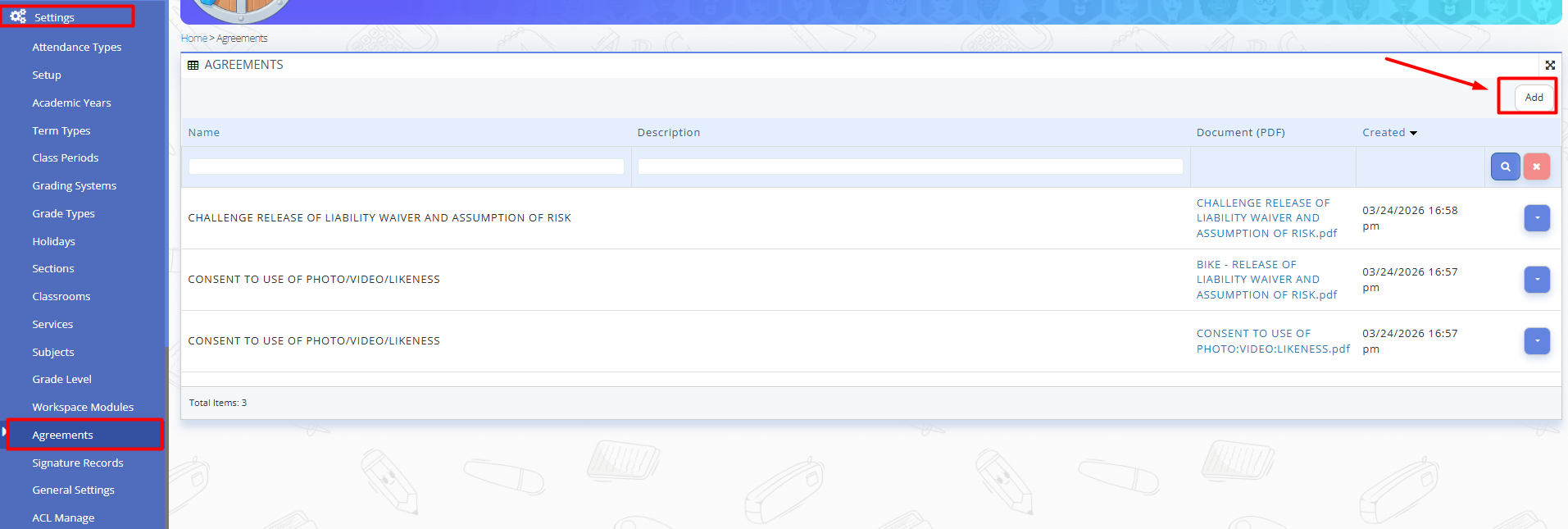
Fig. 1. Agreements Page - Fill in the form:
- name;
- description;
- insert the pre-made PDF file;
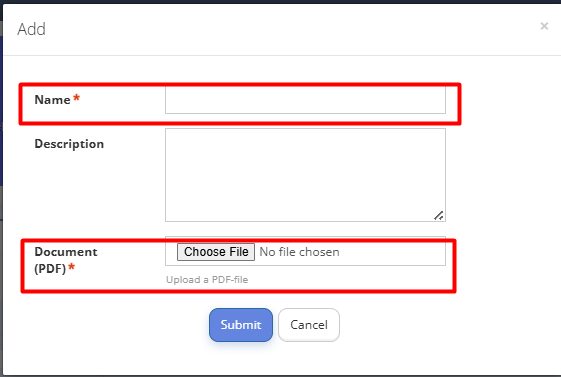
Fig. 2. Adding the New Agreement - Click "Submit".
Editing/Removing A New Agreement
- Navigate to the School "Settings" -> "Agreements" in the menu panel on the left.
- Click the context button on the right to the selected Agreement.
- Click "Edit" to edit the name or the description of the Agreement.
- Click "Sumbit" to save changes.
- To delete the Agreement, select "Remove" option in the context menu on the right to the Agreement.
- Confirm your action by clicking "Yes, remove".
Filtering/Sorting the Agreements
- Use filters like "Name", "Description" and start typing the key word by which you would like to find the required Agreements.
- Use "Created" sorting in order to list the agreements starting from the latest or the oldest ones.
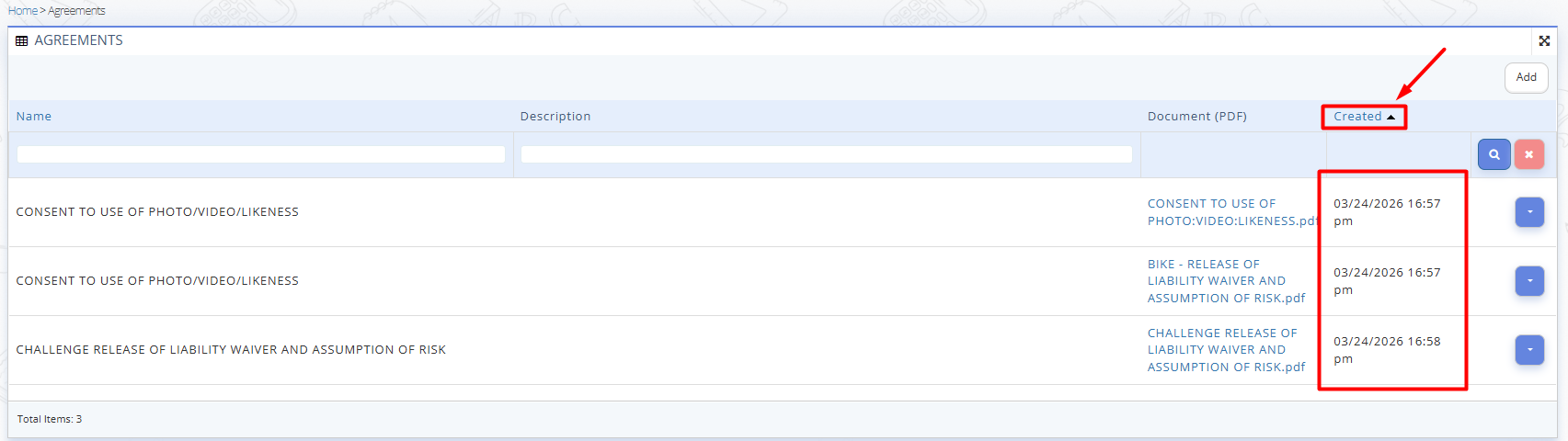
Fig. 3. Sorting the Agreements
Assigning the Agreement to the Specific Session
- Navigate to "Programs" -> "Schools" in the main menu panel on the left.
- Click the context button to the right of the specified school and select "Sessions".
- Select the specific session, click the context menu button to the right and select "Agreements".

Fig. 4. Navigating to the Session Agreements - Click the "Assign" button in the top right corner of the page.
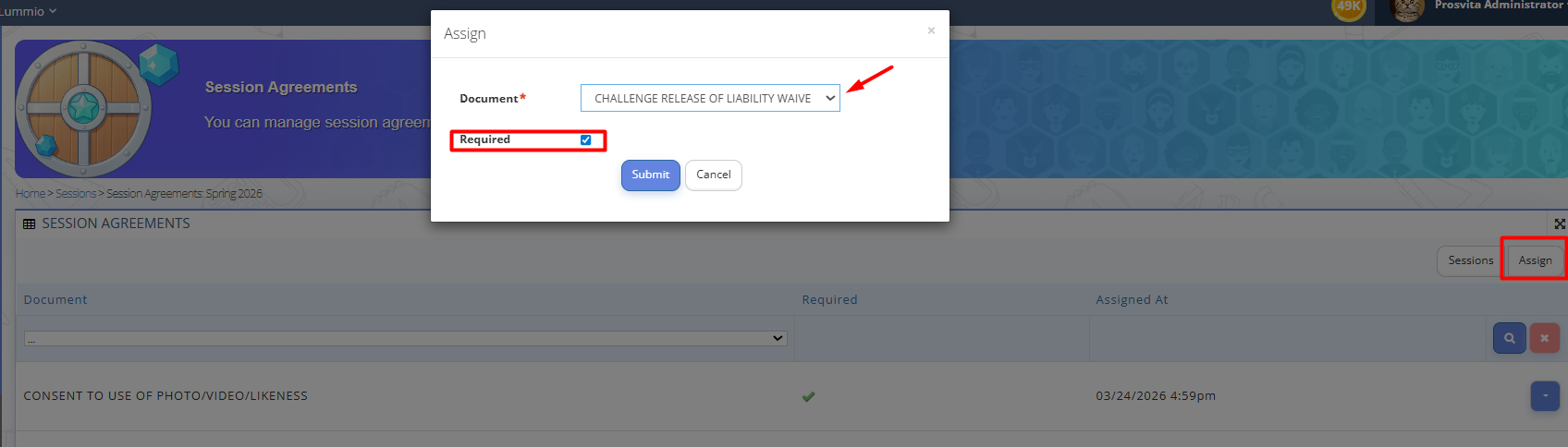
Fig. 5. Assogning the Session Agreements - Select the required Agreement Document from the drop-down list.
- Check the "Required" box if reviewing and agreeing to the agreement is mandatory for the user.
- Click "Submit" to save the changes.
Editing/Removing the Assigned Session Agreement
- Navigate to "Programs" -> "Schools" in the main menu panel on the left.
- Click the context button to the right of the specified school and select "Sessions".
- Select the specific session, click the context menu button to the right and select "Agreements".

Fig. 6. Assogning the Session Agreements - Click the context menu button on the right to the specific agreement and click "Edit".
- Here you can check/uncheck the mandatory of the reviewing and agreeing to the agreement by the user or replace the current agreement with another one.
- Click "Sumbit" to save the changes.
- To delete the Agreement from the Session, select "Remove" option in the context menu on the right to the Agreement.
- Confirm your action by clicking "Yes".
Assigning the Agreement to the Specific Program
- Navigate to "Programs" -> "Schools" in the main menu panel on the left.
- Click the context button to the right of the specified school and select "Sessions".
- Select the required session and click the context menu button to the right of the session and click "Programs".
- Select the specific Program and click the context menu button to the right and select "Agreements".
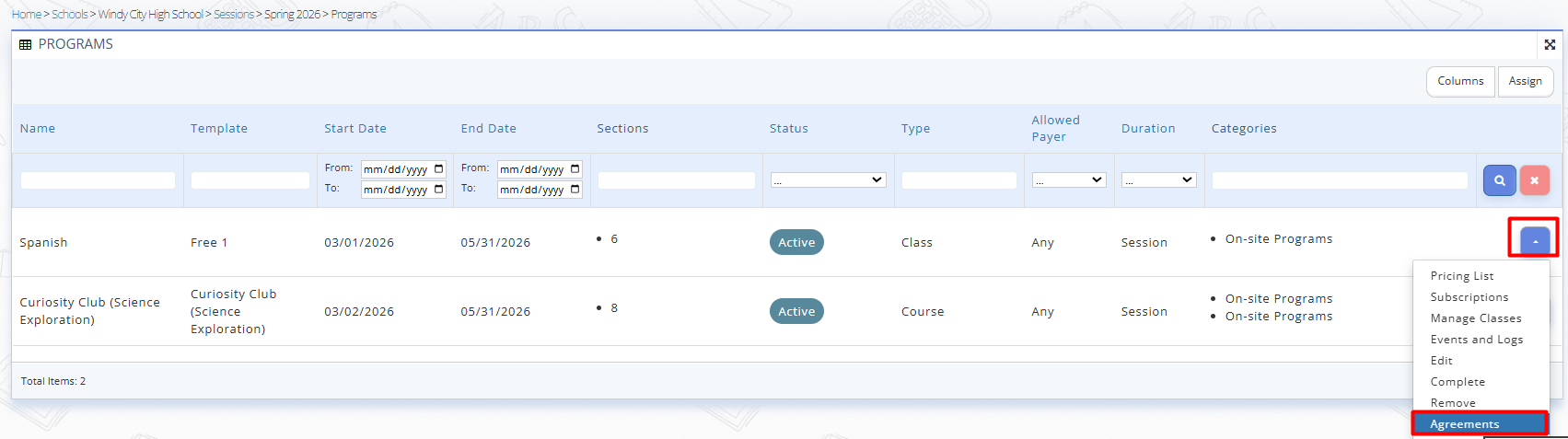
Fig. 7. Navigating to the Programs Agreements - Click the "Assign" button in the top right corner of the page.
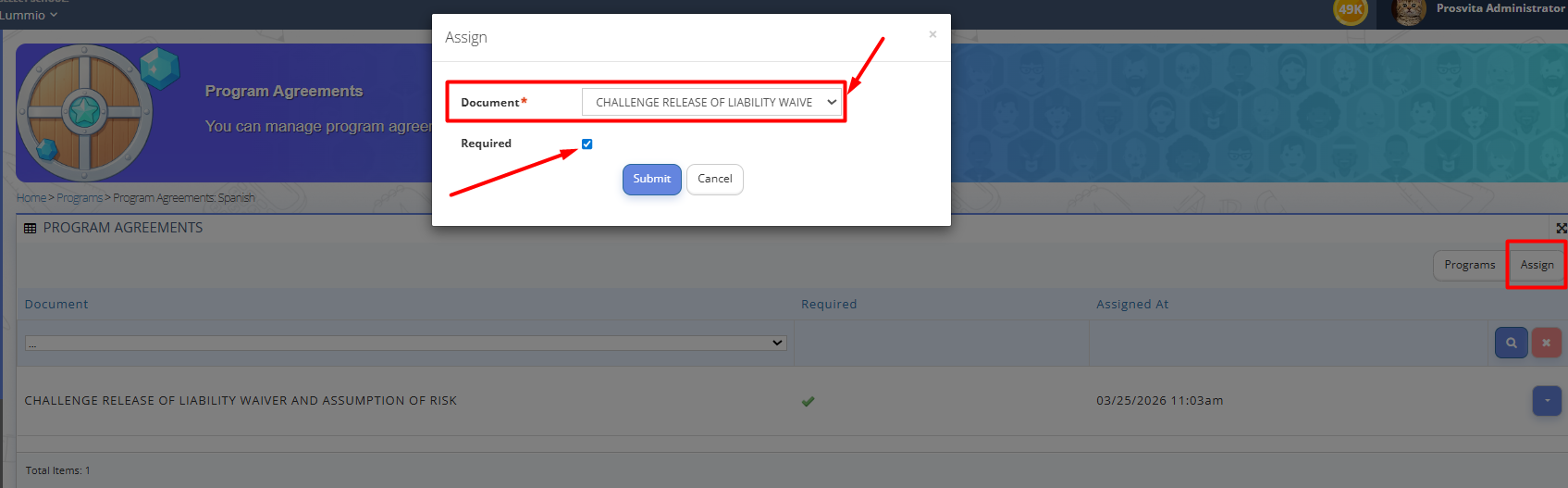
Fig. 8. Assigning the Program Agreements - Select the required Agreement Document from the drop-down list.
- Check the "Required" box if reviewing and agreeing to the agreement is mandatory for the user.
- Click "Submit" to save the changes.
Editing/Removing the Assigned Program Agreement
*Read the "Editing/Removing the Assigned Session Agreement" instructions above.
e-Signatures
While enabling the Session Agreements and Program Agreements Modules, Admin can select which type of e-signature to assign.
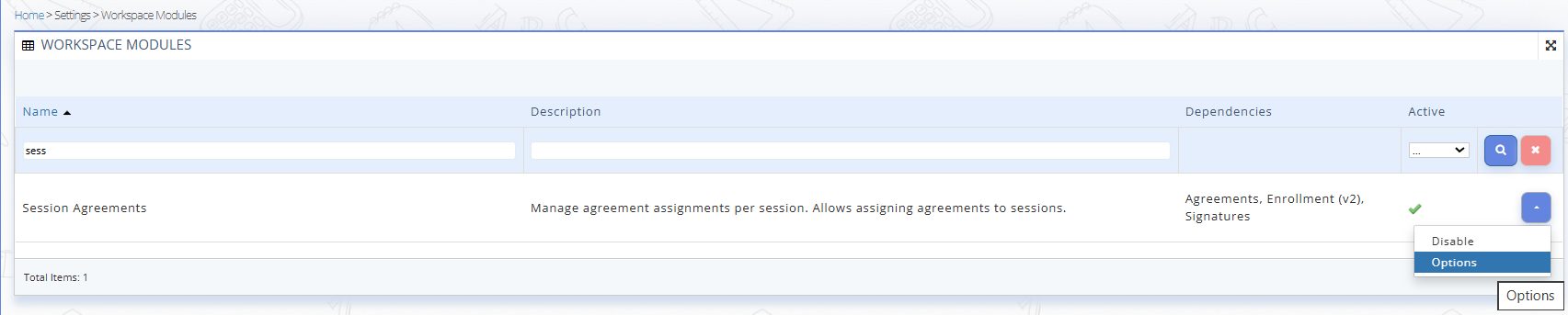
Fig. 9. Activating Session/Program Agreements Modules
The signing methods are:
- "drawn" - a field where users can create or sketch a visual input, like drawing with a stylus or mouse cursor.
- "checkbox" - a selectable box that allows users to mark a choice
- "text" - a field where users can type in written input.

Fig. 10. e-Signatures options
Activating the Session Agreements and Program Agreements Modules with e-Signature Options
- Navigate to the "Settings" -> "Workspace Modules" -> "Session Agreements"/Program Agreements in the main menu on the left.
- Click "Enable".
- Click "Options".
- Select the required signing method from the list:
- drawn;
- checkbox;
- text. - Click "Submit".
This is how the e-Signature block looks like on a user's end while signing the Agreement:
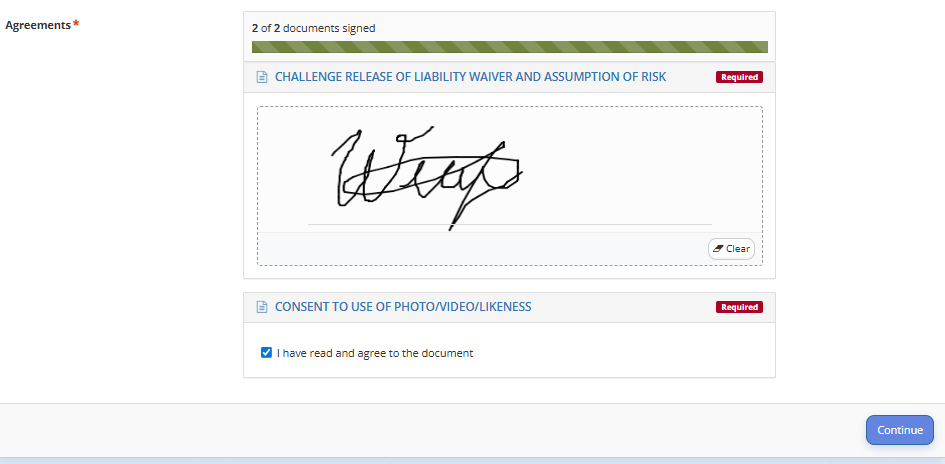
Fig. 11. User e-Signature Block
Tracking and Managing e-Signatures
An Admin can track and manage e-Signature records.
To do this, navigate to the School "Settings" -> "Signature Records" in the main menu on the left.
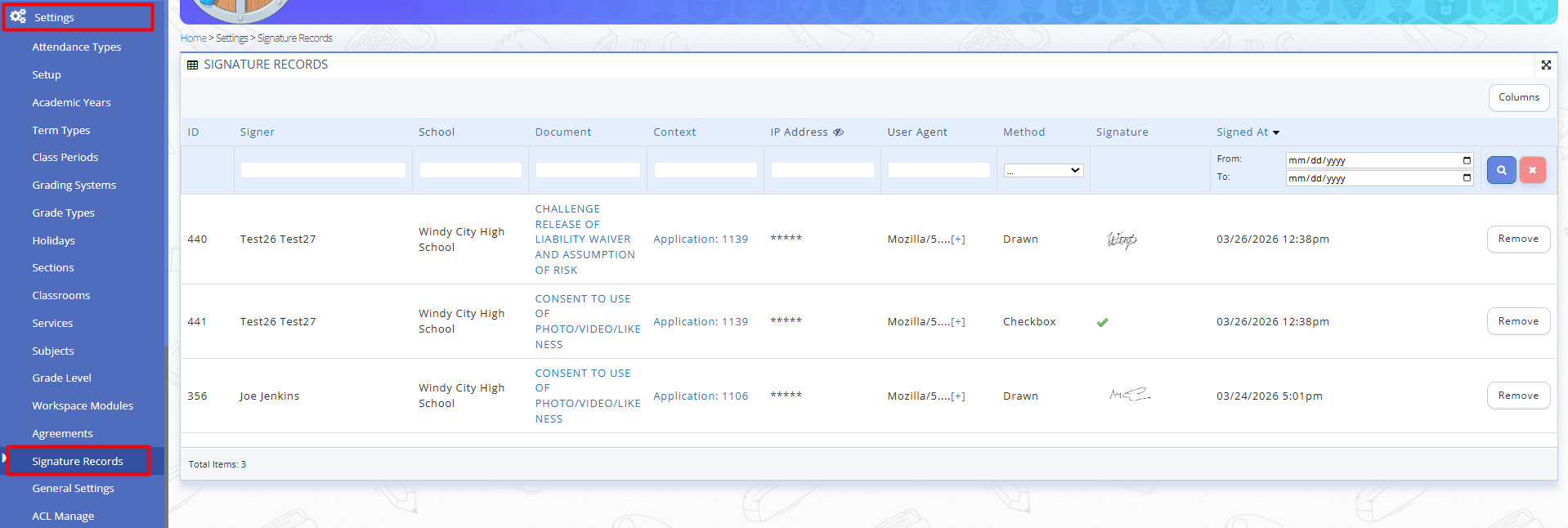
Fig. 12. Signature Records Page
The table displays detailed information for every signature captured:
| Column | Description |
|---|---|
| ID | The unique system database ID for the signature record. |
| Signer | The full name of the person who completed the signature. |
| School | The school associated with the record. |
| Document | The title of the signed document (e.g., Liability Waiver, Photo Consent). |
| Context | Link to the specific application ID where the signature originated. |
| Method | Indicates if the user drew their signature, clicked a consent checkbox or typed a text. |
| Signature | A visual preview of the drawn signature or a green checkmark for checkboxes. |
| Signed At | The exact date and timestamp when the signature was submitted. |
Clicking the "Remove" button will delete the signature record from the system.