Custom Fields in the "Students" Section
Short Overview
In the Students section, a school administrator can add custom fields which are additional information columns that are not included among the system's standard fields.
These fields appear in each student's profile card and are displayed as a separate column in the general student list on the "Students" page.
This flexible setting allows schools to collect exactly the information they need.
How to Add a New Field
- Go to the Students section → Custom Fields.
- Click Add.
- In the Type field, select the required field type from the list.
- Complete the parameters that appear for the selected type (they vary depending on the field type — see below).
- Click Submit.
After saving, the field immediately appears in the student profile creation/editing form and is available for completion.
Common Settings (Available for Almost Every Field Type)
| Parameter | Purpose |
|---|---|
| Caption (required) | The name of the field displayed to the user. Maximum 255 characters. |
| Required | If enabled, the form/student profile cannot be saved until this field is completed. Use this for critical information (for example, consent signing date or the availability of preferential status certificates, such as IDP certificates, combatant certificates, etc.). |
| Hide | Hides the field's column from the list table (for example, the student list), while keeping the field available for editing in the profile form. Useful for fields that are rarely needed and should not overload the main table with information. |
| Disclaimer | An optional hint displayed below the field — a short explanation for the user about what and how to enter. |
Below are the available field types and recommendations for when to use each one.
1. Checkbox
What it is: a simple "yes/no" field displayed as a checkbox ☐ → ☑.
When to use:
- Binary characteristics: "Has an IDP certificate", "Requires individual support", "Consent to the use of personal data has been provided", etc.
- Situations where a simple "yes/no" indication is sufficient without additional details.
There are no special parameters apart from the common settings — this is the simplest field type to configure.
2. Date and Time
What it is: a field for entering a date and a time data.
Additional parameters:
- Date format — determines how the date is displayed (for example,
Y-m-dfor the 2026-08-19 format). If the school requires a specific date format in tables, specify it here. - Include time — if enabled, the user selects not only the date but also the time and specifies its format, for example,
hh:mm:ss
When to use:
- "Consent signing date" (consent, contract).
- "Enrollment date", "Medical examination date".
- When the exact time is important, enable Include time.
3. Email
What it is: a text field that validates whether a correctly formatted email address has been entered.
When to use:
- An additional contact email (for example, a second parent's or guardian's email), in addition to the primary profile email.
- Any field where it is important for the system to validate the email format immediately, helping prevent input errors.
There are no special parameters apart from the common settings.
4. Number
What it is: a field for entering a numerical value with optional restrictions.
Additional parameters:
- Minimum / Maximum — the limits for the allowed value (for example, age from 3 to 18).
- Decimal places — the number of digits allowed after the decimal point (0 means whole numbers only).
- Step — the amount by which the value changes when using the up/down arrows in the field (for example, a step of 1 or 0.5).
When to use:
- Number of siblings in the school, blood group number, average grade/rating, weight/height (for sports programs), etc.
- Anywhere you need to ensure that the entered value is a number within a specific range.
5. Currency
What it is: a number displayed as a monetary amount with a currency.
Additional parameters:
- Minimum / Maximum / Decimal places / Step — work the same way as in the Number field.
- Locale — determines the currency and amount display format (for example, USD).
- Mask value — hides the specific amount in the list (the table displays the value masked with asterisks
*), while the actual value remains stored and available for use. It can be viewed by clicking the eye icon below the column heading.
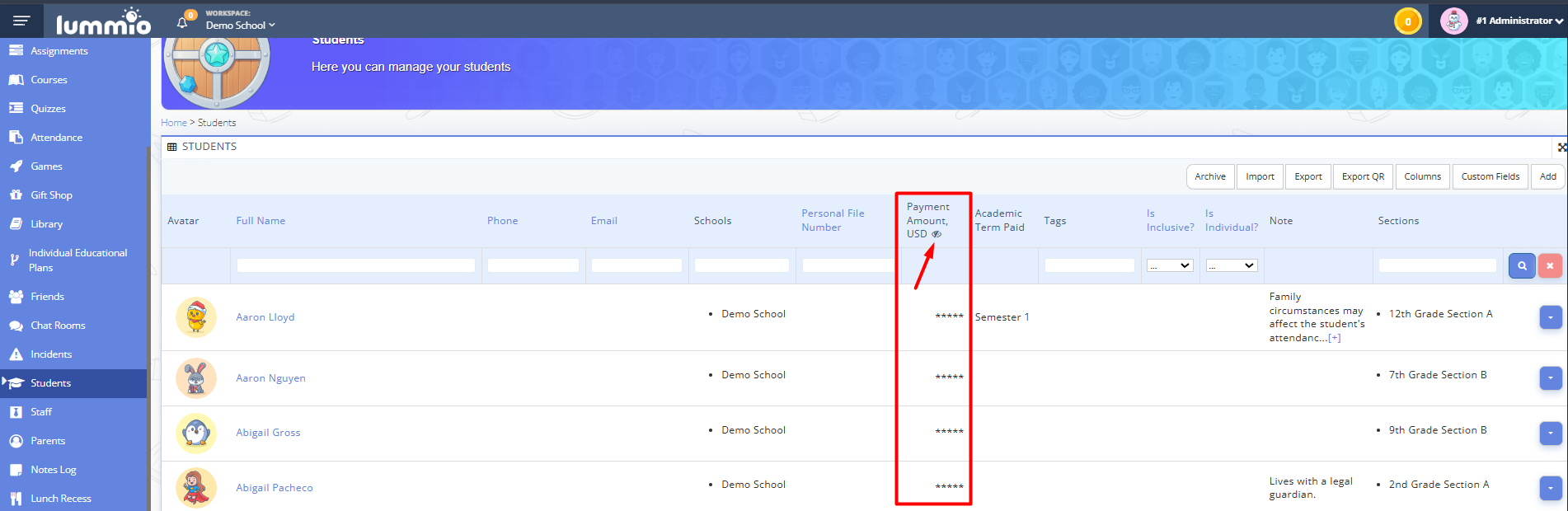
Fig. 1 — Masked values in the "Currency" custom field

When to use:
- "Program participation fee", "Club payment amount", "Cost of textbooks".
- If the amount should remain confidential in the general list, enable masking.
6. Dropdown List
What it is: a field where the user selects one value from a predefined list of options.
Additional parameters:
- Options (required) — the list of available options. Use the + button to add more options and – to remove them. The content must be duplicated in both fields.
- Allow empty — if enabled, the user can leave the field without selecting an option.
When to use:
- When the answer must be selected from a limited, predefined list: "Health group", "Payment method", "Selected club/program area".
- This is a better choice than a text field when it is important to standardize responses (so that values such as "5-A", "5a", and "5 A" are not entered instead of one standard option).
7. Long Text
What it is: a multi-line text field for detailed responses.
Additional parameters:
- Max. length — limits the length of the text.
- Shorten in list after (characters) — in the table, long text is automatically truncated after the specified number of characters to prevent the table from becoming too wide.
- Show full text in popup — when truncation is enabled, allows the user to open the full text in a modal window by clicking it (requires a truncation limit to be set).
When to use:
- "Child's health considerations", "Additional requests from parents", "Doctor/psychologist comments", descriptions of achievements.
- Anywhere the response may be longer than one sentence.
8. Text
What it is: a simple single-line text field.
Additional parameters:
- Max. characters — limits the length of the entered text.
When to use:
- Short responses with a fixed but not strictly defined format: "Certificate number", "Contact person's name", "Name of previous educational institution".
- If the response is short (one word or phrase), choose Text rather than Long Text.
Practical Recommendations
- Choose the narrowest field type that fits the task. For example, use Date and Time for a date instead of Text: this prevents input errors and allows sorting/filtering by date.
- Mark a field as Required only when the information is genuinely critical — too many required fields make the registration form more difficult for parents to complete.
- Use Description to explain unusual or non-obvious fields — this reduces the number of incorrect entries.
- Use Hide for fields (such as internal notes) that should not overload the general student list but are still needed in the student's profile.