Sign Up Template
Configuring the Sign Up Template (Program Registration Visual Page)
Overview
The Sign Up Template is where the structure of the registration page is built: pre-configured program blocks (clubs, after school activities, etc.) are selected, their display order on the page is set, and the placement of the registration form itself is defined.
Navigating to the Sign Up Template
- Navigate to the Programs -> Schools and find the required school in the list.
- Click the actions menu next to the school name.
- Select Signup Template.
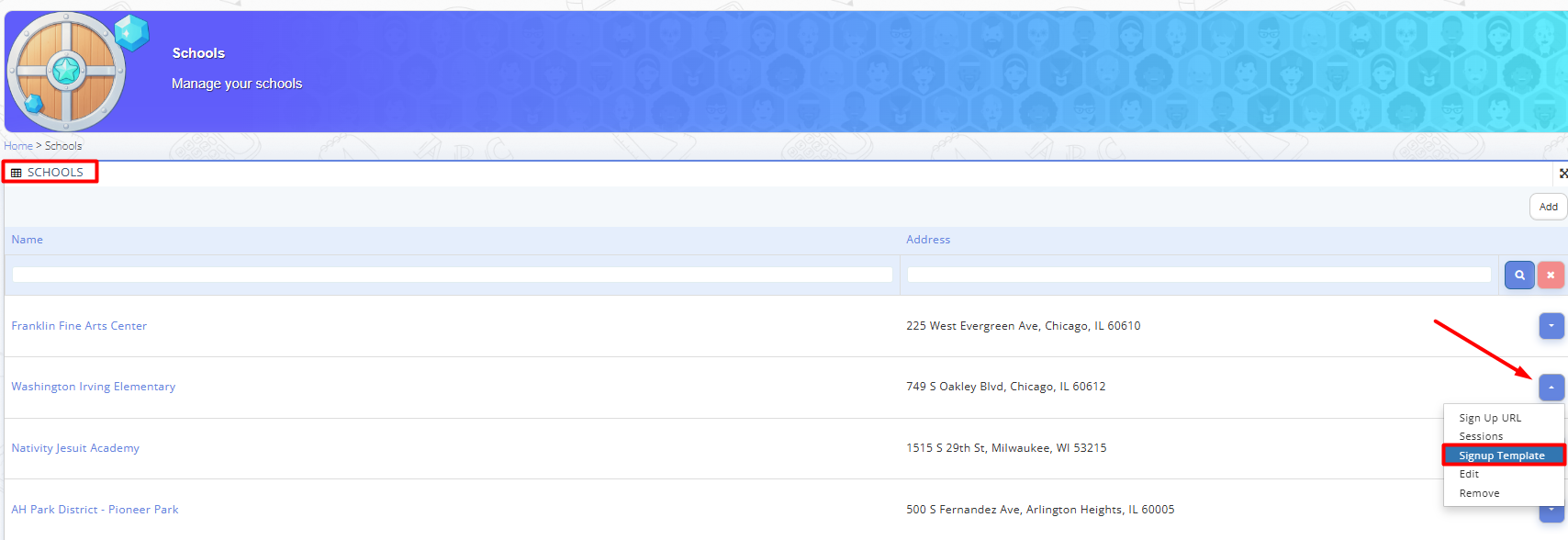
Fig. 1. Signup Template in the Actions Menu

Note: The same menu also contains Sign Up URL. Once the template is configured, this is where the registration link can be generated.
Signup Template Structure
Sign Up Template page contains a list of blocks — for example: Signup Form, Basketball, Board Game & Chess Club, Coding/Robotics, Cooking Club, Curiosity Club, Karate, Running Club, Yoga, etc.
Each row includes:
- Block — the name of the program block;
- Order Index — the sequence number that determines the block's position on the page;
- Sign Up Form status: Enabled or Disabled;

Fig. 2. Signup Template Structure Page
Adding a New Program Block

Fig. 3. Assigning programs' blocks sequence
- Click Add Block in the top-right corner.
-
Fill in the form:
- Block — select the required program from the list (e.g., Basketball).
- Order Index — specify where in the sequence this block should appear, i.e. 1, 2, 3 etc.
-
Form:
- if you need the signup fields to be placed at the top of the signup page: leave the block field empty, assign order index as 1 and activate Enabled next to the Form.
- if you need the signup fields to be placed at the bottom of the signup page: leave the block field empty, assign order index as the last one in your blocks' sequence and activate Enabled next to the Form.
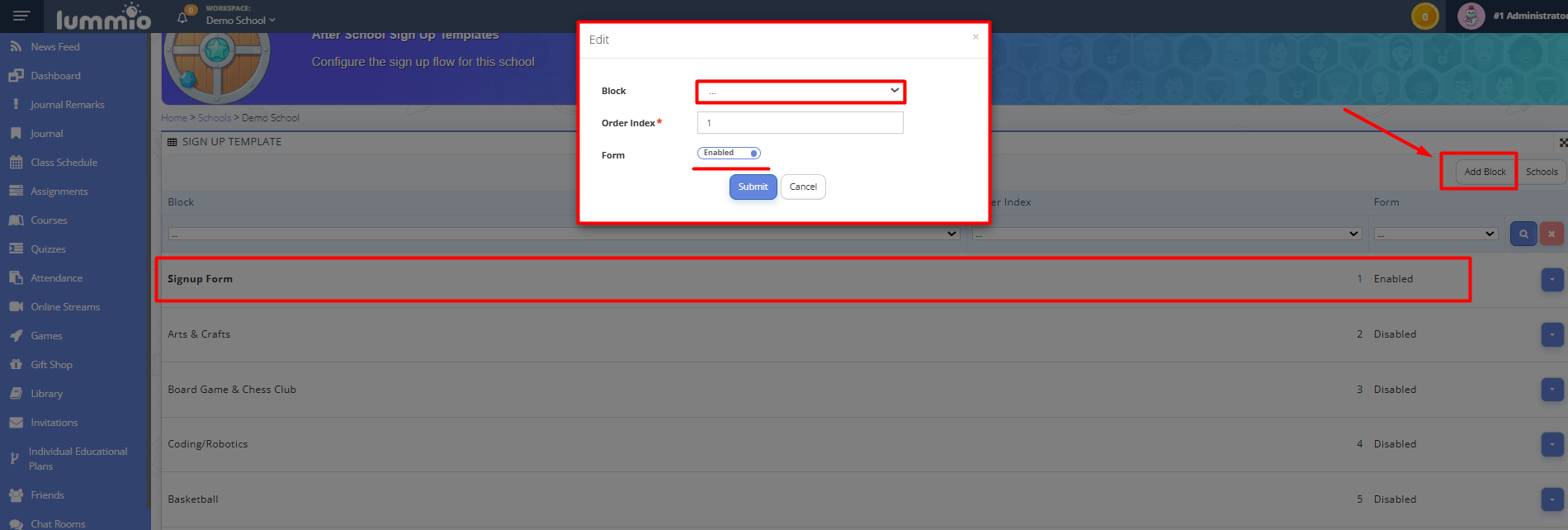
Fig. 4. Assigning signup form blockNote:
There's no need to activate Enabled on every block. Doing so would activate registration fields after every single program block, which is unnecessary and should be avoided.
-
Click Submit.

Editing Block Order
The sequence of blocks (Order Index) can be changed at any time:
- Click the actions menu next to the required block.
- Select Edit.
- Update the Order Index value as needed.
- Save the changes.
The same menu can also be used to disable or remove a block if it's no longer needed on the registration page.

Fig. 5 Program signup page with program blocks overview