Instructions on Using AI tool in the Chrome Browser to Perform Administrative Tasks on the Platform
1. Installing the Claude Extension
- Go to the Claude.com extension in the Chrome Web Store and click "Add to Chrome".
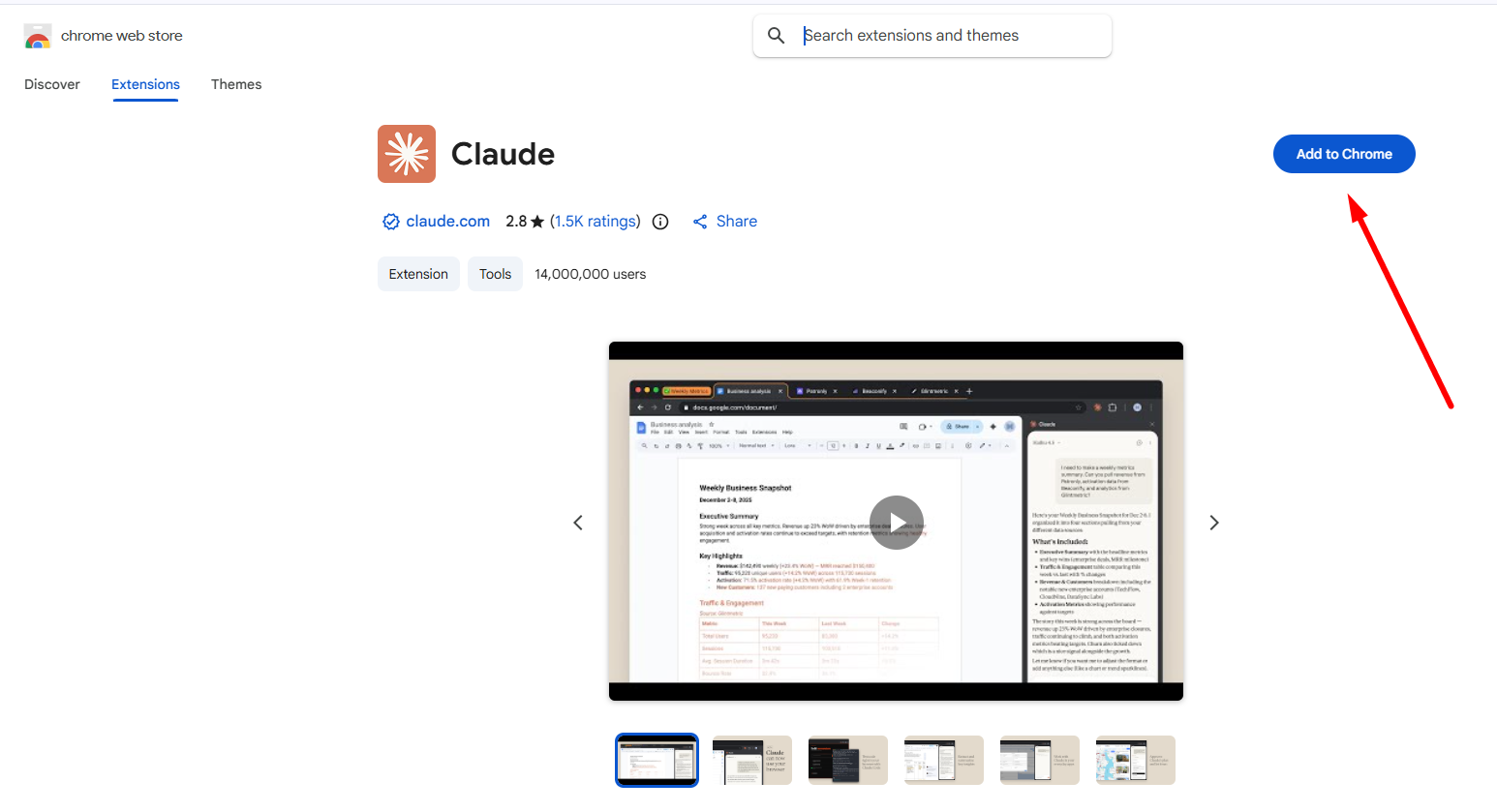
Fig. 1. Claude extension in the Chrome web store - In the pop-up window, click "Add extension".
- Open the Chrome browser settings by clicking the three dots in the upper-right corner of the browser window.
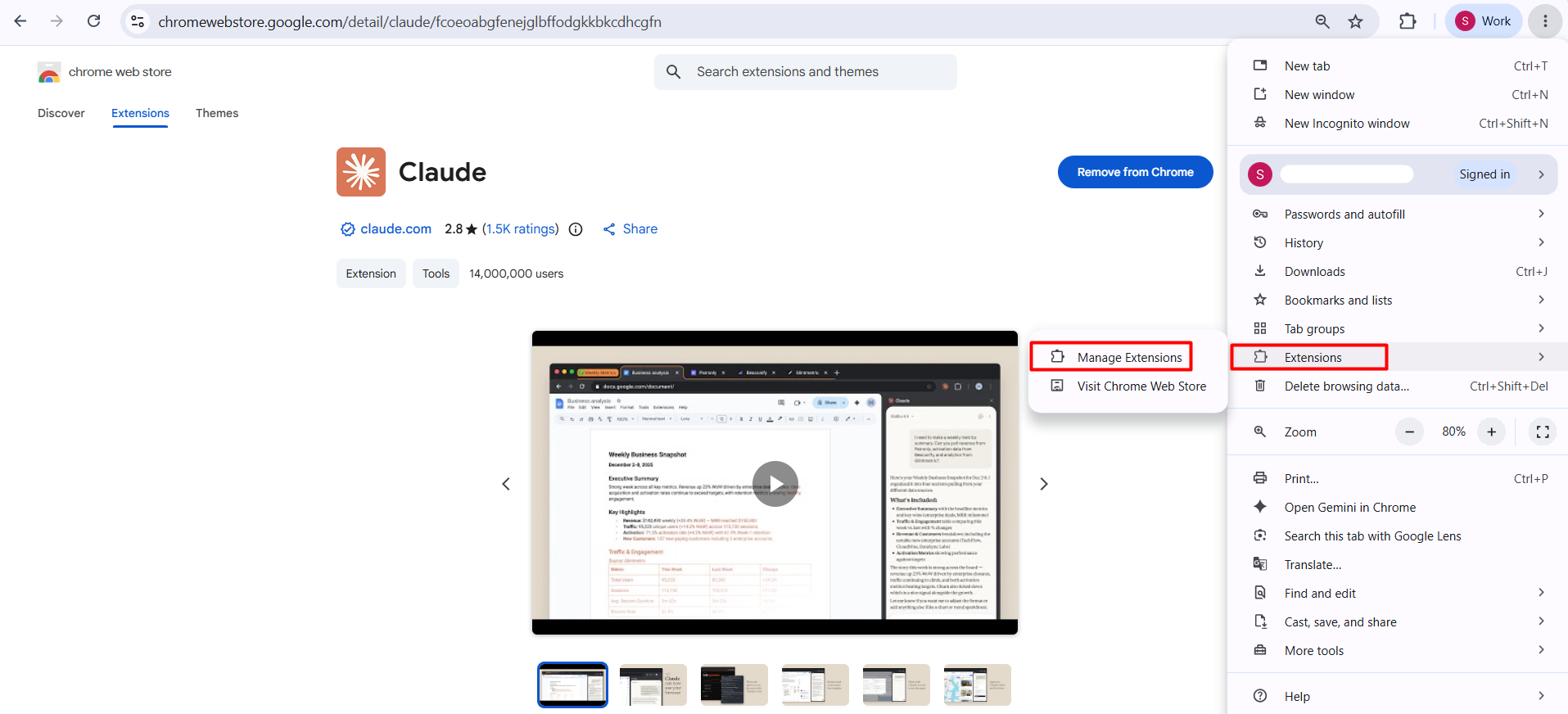
Fig. 2. Manage Claude extension in the Chrome settings - Select "Extensions → Manage extensions".
- Find Claude in the list of extensions and make sure the extension toggle is set to "On".
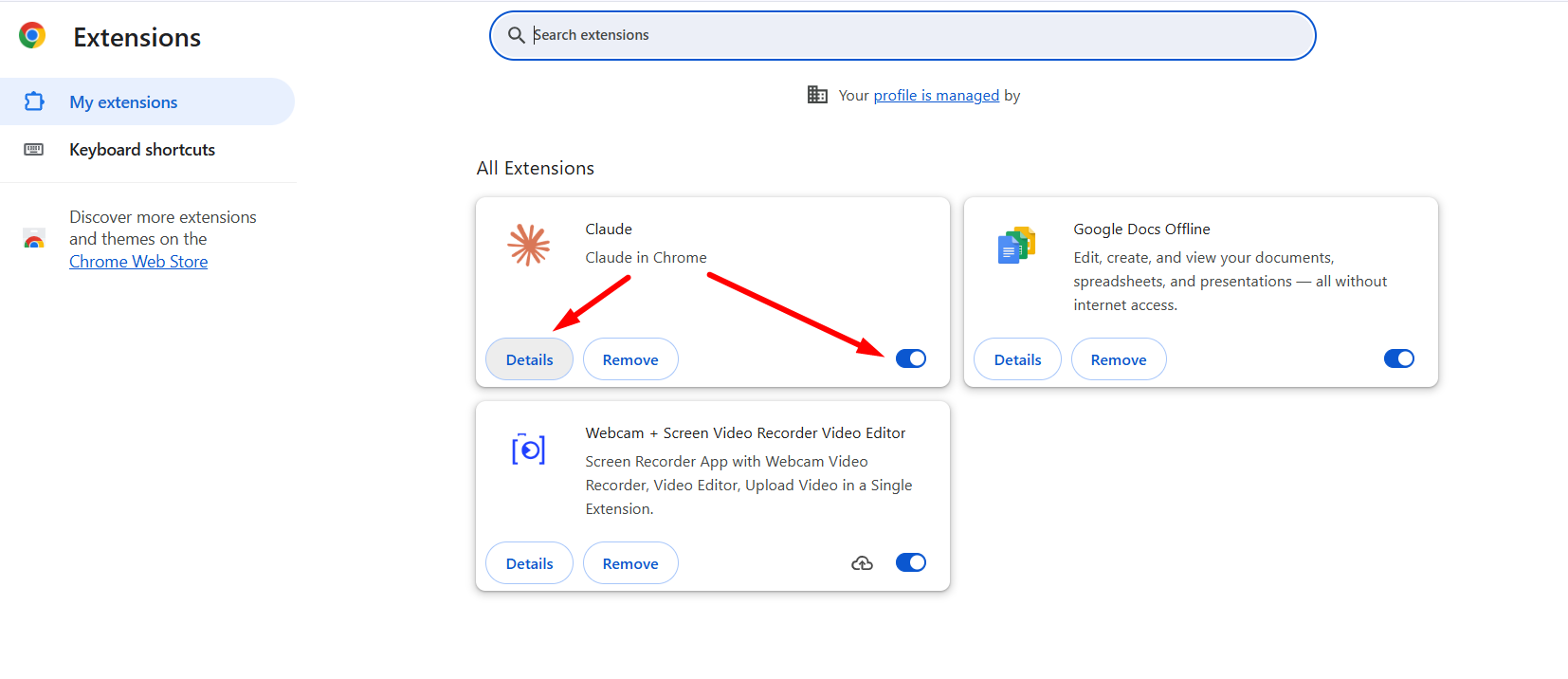
Fig. 3. Claude extension toggle is ON - Click "Details".
- Find the "Pin to toolbar" option and turn it on.
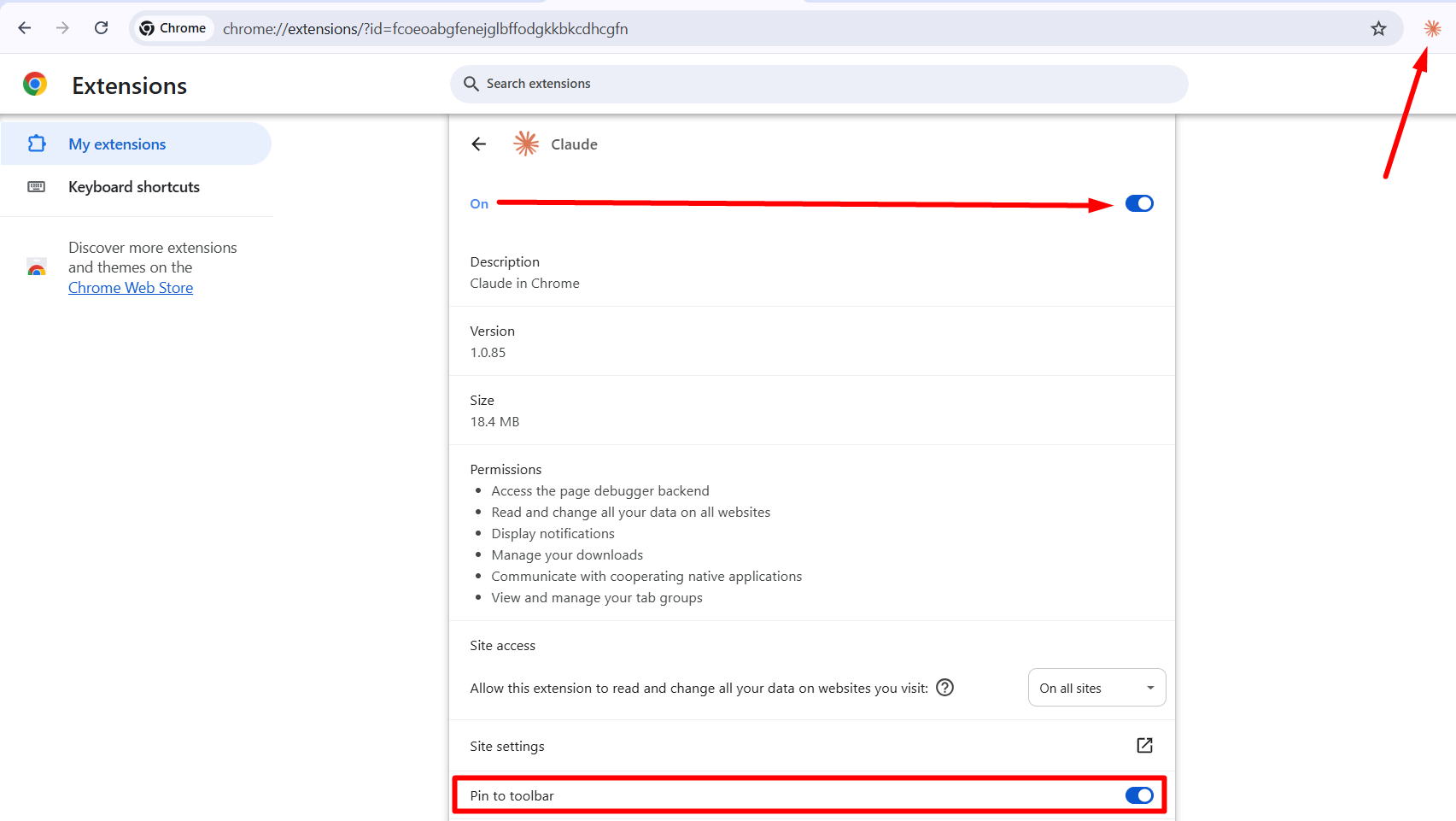
Fig. 4. Pinned Claude extension to the Chrome toolbar


After this, the Claude icon will appear to the right of the browser's address bar.
2. Performing a Task Using Claude in a Chrome Browser Session
- Navigate to the required section of the platform.
- Click the Claude icon on the browser toolbar in the upper-right corner and sign in to your Claude account.
-
In the chat field, describe the task in as much detail as possible. Include a link to the relevant platform page or the specific section where the actions need to be performed.
For example:
Assign the "School Bus" tag to the students {student names} who use school transportation by bus.
-
Claude will analyze the task and suggest a plan of action. It may ask you to confirm the plan or make changes to it.
- Review the proposed plan and confirm it by clicking "Approve Plan", or make the necessary changes by clicking "Make changes".
3. Monitoring Claude's Work
- After Claude connects to the browser session, you will see a terracotta-colored highlight around the edges of the webpage.
- The enlarged arrow cursor will also have the corresponding highlight.
- A banner will appear at the top of the page indicating that "Claude has started debugging this browser."
- A "Stop Claude" button will appear at the bottom of the page. You can use it to stop Claude's actions at any time.
- While Claude is working, you will be able to observe all of its actions on the page in real time.
4. Completing the Task
After completing the task, Claude will report the result in the chat.
If Claude needs additional information to continue, it will ask clarifying questions. Provide the necessary information so that Claude can continue performing the task.
Important: Before allowing Claude to perform bulk or critical actions, carefully review the proposed plan to make sure that it has correctly understood your task.